

Part 1: How to Diagnose and Fix Blue Screen Errors (BSOD)
Begin with these simple steps. Many BSODs are caused by drivers, updates, or basic system issues.

Restart Your PC
A simple restart can fix temporary glitches
- Save your work.
- Click Start > Power > Restart .

Check for Recent Changes
Did the BSOD start after you installed or changed something?
- New Driver
- Windows Update
- New Software
- New Hardware
Try Uninstalling or reverting it.

Boot into Safe Mode
Safe Mode loads only the essential drivers.
- Restart you PC.
- Press and hold “ Shift ” while clicking “ Restart ”
- Go to Troubleshooting > Advanced options > Startup Settings .

Update or Roll Back Drivers
Faulty or outdated drivers are a common cause.
- in Safe Mode, open “ Device Manager”
- Right-click the device > Update driver
- if the problem started after an update choose “ Roll Back Driver “

Run Windows Update
Install the latest update and restart.
- Settings > Windows Update
- Click “ Check for updates “
- Install everything available

Run a Virus Scan
Malware can cause system crashes.
- Use Windows Security
- Run a Full scan of your system
- Remove any threats found

Check Disk Space & Health
Low disk space or failing drives can cause crashes.
- Ensure at least 10-15% free space.
- Listen for unusual noise from your drive

Part 2: Advanced & Intermediate Methods
If the basic steps didn’t fix the BSOD, try these advanced solutions.

Analyze the stop code
Search the exact stop code online for more information.

Check for Memory Problems (RAM Test)
Faulty RAM is a major cause of BSODs.
- Press Windows + R
- Type: mdsched.exe
- Choose ” Restart now and check for problems”
- Windows will test your RAM. Let it complete.


Check Disk for Errors (CHKDSK)
- Open Command Prompt as Administrator.
- Type chkdsk C: /f /r
- Press Enter and restart if asked.


Check system files (SFC & DISM)
- Open Command Prompt as Administrator.
- Run these commands one by one
SFC /scannow
DISM /Online /Cleanup-image /RestoreHealth

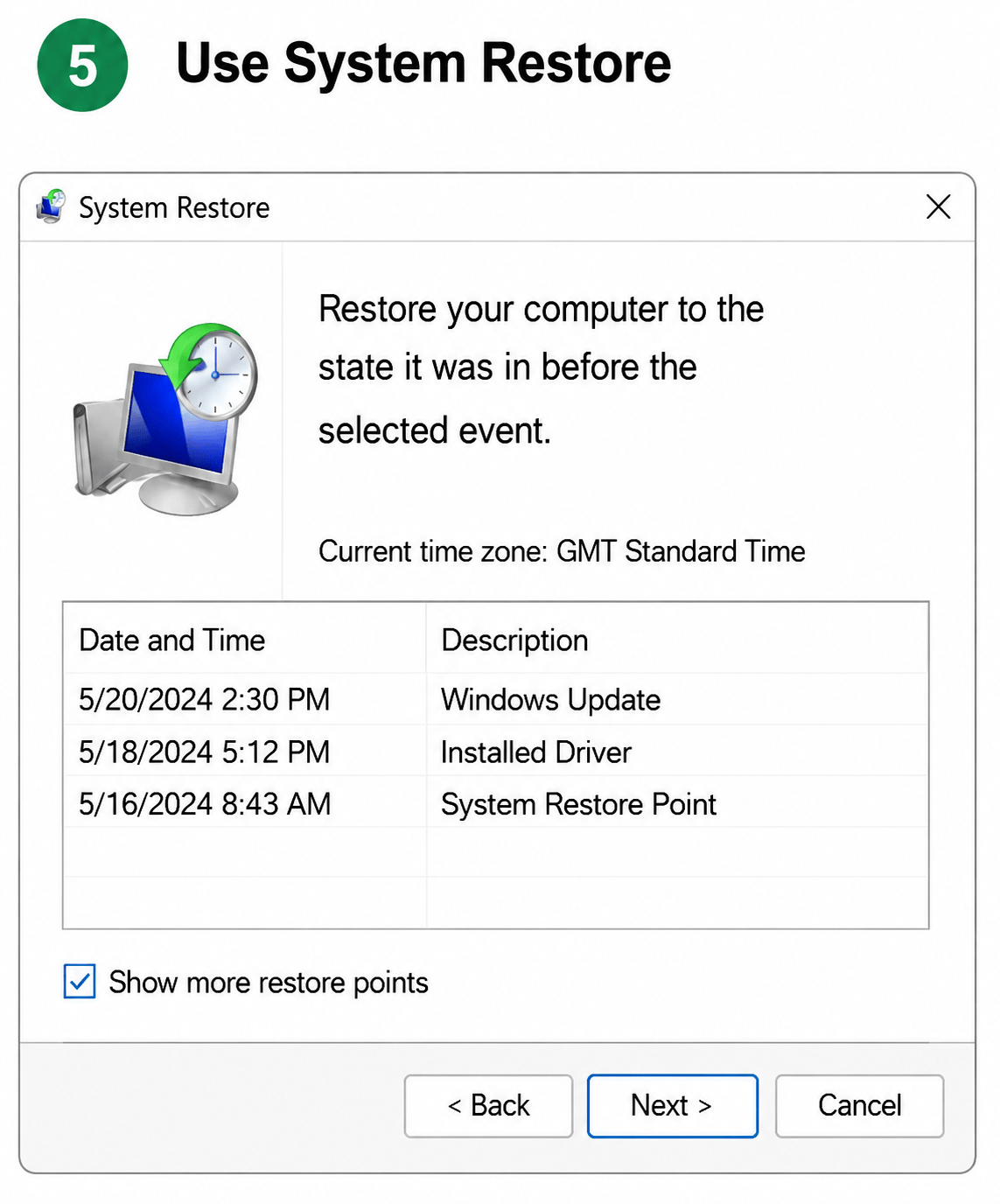
Use System Restore
- Press Windows + R
- Type: Rstrui.exe
- Choose a restore point before the BSOD started.
